
Can my fitness app track my steps without my phone? Yes, some fitness apps can track steps using your phone’s internal sensors even when you’re not actively using the app, as long as permissions are granted and background activity is allowed. Is my fitness app not tracking steps because of my phone’s battery saver? Yes, battery saver modes can often interfere with background app activity, including step tracking.
Many people experience frustration when their fitness app stops tracking their steps. It’s a common issue that can stem from a variety of causes, from simple settings to more complex technical problems. This in-depth guide will help you pinpoint the exact reason why your fitness app isn’t accurately counting your daily movement and provide clear, actionable solutions. We’ll delve into common culprits like GPS not syncing, step counter issues, and mobile sensor malfunction. We’ll also explore the impact of app permissions not granted, battery saver mode interfering, and Bluetooth connection problems. Furthermore, we’ll address inaccurate step counting, situations where your fitness tracker not connecting, background app refresh disabled, and device compatibility issues.
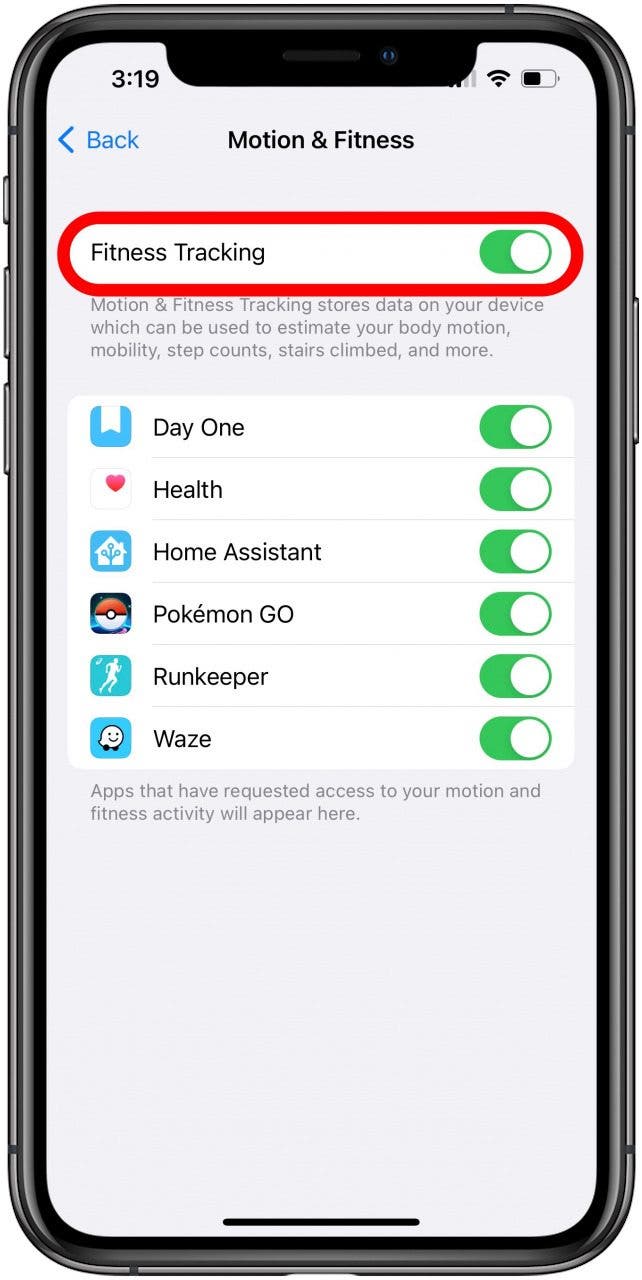
Image Source: www.iphonelife.com
Common Reasons for Step Tracking Failures
Let’s break down the most frequent reasons why your fitness app might be letting you down in the step-counting department.
1. App Permissions: The Gatekeepers of Data
Fitness apps need access to specific hardware and software features on your device to function correctly. If these permissions aren’t granted, the app simply cannot collect the necessary data.
Essential Permissions for Step Tracking
- Motion & Fitness Activity: This is arguably the most crucial permission. It allows the app to access data from your phone’s accelerometer and gyroscope, which are the primary sensors used for step detection.
- Location Services: While not always strictly necessary for basic step tracking, many apps use GPS for more detailed activity mapping and distance calculations. If your GPS isn’t syncing, it could be linked to location permission issues.
- Background App Refresh/Activity: This allows the app to run and collect data even when you’re not actively using it. Without it, step tracking will likely stop once you switch to another app.
Checking and Granting Permissions
The steps to check and grant permissions vary slightly between iOS and Android.
For iOS:
1. Go to your iPhone’s Settings.
2. Scroll down to find the specific fitness app.
3. Tap on the app.
4. Ensure that Motion & Fitness is toggled ON.
5. For location-based features, check Location and select “While Using the App” or “Always” (depending on the app’s requirements).
6. To ensure it can run in the background, go to General > Background App Refresh and make sure it’s enabled for your fitness app.
For Android:
1. Go to your phone’s Settings.
2. Navigate to Apps or Applications.
3. Find and tap on your fitness app.
4. Select Permissions.
5. Grant access to Physical activity (this is often the equivalent of Motion & Fitness).
7. Ensure Location is enabled if needed.
8. For background activity, go to Settings > Battery > Battery Saver (or similar) and ensure the app is not restricted. You might also find an option under app settings like “Run in background” or similar.
2. Battery Saver Modes: The Silent Killers of Background Activity
Modern smartphones are equipped with battery saver modes designed to extend battery life. While beneficial, these modes can aggressively limit background processes, which often includes the continuous operation of fitness apps.
How Battery Saver Interferes
When battery saver is active, your phone might:
* Close background apps to conserve power.
* Reduce the frequency of data syncing.
* Disable sensors that consume significant battery, like the accelerometer and GPS.
Optimizing Battery Settings for Your App
- Exclude Your Fitness App: Most Android devices allow you to exempt specific apps from battery optimization. Look for settings related to “Battery Optimization,” “Unrestricted Data,” or “App Power Management” within your phone’s battery settings and add your fitness app to the exclusion list.
- Disable Battery Saver: As a temporary troubleshooting step, try disabling battery saver mode entirely to see if step tracking resumes. If it does, you’ve found your culprit.
- Check Power Management Settings: Some phones have more granular power management features. Explore these to ensure your fitness app isn’t being unnecessarily restricted.
3. Mobile Sensor Malfunction: The Unseen Hardware Issues
Your phone relies on internal sensors like accelerometers and gyroscopes to detect movement, which is fundamental to step tracking. A mobile sensor malfunction can render these features useless.
Diagnosing Sensor Problems
- Test Other Apps: Try using another app that relies on motion sensing (e.g., a compass app, a game that uses tilt controls). If these apps also fail to work correctly, it points to a hardware issue with your phone’s sensors.
- Restart Your Phone: A simple restart can sometimes resolve temporary glitches with sensors.
- Update Your Phone’s Software: Operating system updates often include fixes for hardware-related issues.
- Check for Physical Damage: Dropping your phone can damage internal components, including sensors.
What to Do with Malfunctioning Sensors
If you suspect a mobile sensor malfunction, your options are limited:
* Contact Manufacturer Support: If your phone is under warranty, reach out to the manufacturer for repair or replacement.
* Seek Professional Repair: If out of warranty, consider a reputable phone repair shop.
* Use a Dedicated Fitness Tracker: If phone sensors are consistently problematic, a dedicated fitness tracker or smartwatch that relies on its own sensors might be a more reliable solution.
4. Background App Refresh Disabled: The Flow Stopper
For your fitness app to track steps continuously, it needs to be allowed to run in the background. If background app refresh is disabled, the app will likely only track steps when it’s open and active on your screen.
How Background Refresh Works
This feature allows apps to update their content and perform tasks even when they are not actively being used. For step tracking, this means the app can periodically check the sensor data without you needing to keep it open.
Enabling Background Refresh
- iOS: As mentioned earlier, go to Settings > General > Background App Refresh. Find your fitness app in the list and ensure the toggle is switched ON.
- Android: This setting is often managed within the battery optimization or app power management settings. Ensure your fitness app is not being restricted from running in the background. Some Android versions might have a specific “Background activity” or “Allow background data usage” setting for individual apps.
5. Bluetooth Connection Problems: The Wireless Roadblock
If your fitness app relies on a separate fitness tracker or smartwatch, a weak or broken Bluetooth connection problems can prevent data from syncing, leading to a lack of recorded steps.
Troubleshooting Bluetooth Syncing
- Ensure Bluetooth is ON: Double-check that Bluetooth is enabled on both your phone and your fitness tracker.
- Keep Devices Close: Bluetooth has a limited range. Make sure your tracker is within a few feet of your phone.
- Restart Devices: Turn Bluetooth off and then back on on your phone. Restart both your phone and your fitness tracker.
- “Forget” and Re-pair: In your phone’s Bluetooth settings, “forget” your fitness tracker and then re-pair it.
- Check Tracker’s Battery: A low battery on your fitness tracker can affect its ability to maintain a Bluetooth connection.
- Update Firmware: Ensure both your phone’s OS and your fitness tracker’s firmware are up to date.
6. Fitness Tracker Not Connecting: The Syncing Standoff
This is a specific instance of Bluetooth issues but applies when the entire fitness tracker not connecting to the app. This can be due to various reasons.
Deep Dive into Tracker Connectivity
- App-Specific Sync Issues: Some apps have their own syncing mechanisms that can get stuck. Try manually initiating a sync within the app.
- Account Issues: Occasionally, logging out of your fitness app account and logging back in can resolve syncing problems.
- Interference: Other Bluetooth devices or Wi-Fi networks can sometimes cause interference. Try moving to a different location.
- Device Limits: Some apps or trackers might have limits on how many devices they can connect to simultaneously.
7. GPS Not Syncing: The Location Log Jam
If your app uses GPS not syncing to track distance and routes, this can impact overall activity logging, though it’s less common for basic step counting unless the app relies heavily on GPS for cadence estimation.
Reasons for GPS Inaccuracy
- Poor Signal: Being indoors, in dense urban areas with tall buildings, or under heavy tree cover can weaken GPS signals.
- Location Services Disabled: As mentioned, if location services aren’t enabled for the app, GPS won’t work.
- Outdated Software: Phone OS updates often include GPS performance improvements.
- Battery Saver Restrictions: Some battery saver modes explicitly limit GPS usage.
Improving GPS Syncing
- Go Outdoors: For accurate GPS tracking, ensure you are in an open area with a clear view of the sky.
- Allow Time to Acquire Signal: Before starting an activity, give your phone a minute or two to acquire a strong GPS lock.
- Check GPS Status: Some apps display a GPS signal strength indicator.
8. Inaccurate Step Counting: The Deceptive Data
Sometimes, the app is tracking steps, but the numbers seem off. This inaccurate step counting can be frustrating.
Factors Affecting Accuracy
- Sensor Sensitivity: Different phone models and fitness trackers have varying sensor sensitivities and algorithms for detecting steps.
- Movement Patterns: Actions that mimic walking but aren’t steps (like jiggling your leg) can sometimes be miscounted. Conversely, certain walking gaits or carrying your phone in a way that dampens its movement might lead to missed steps.
- App Algorithms: The way an app processes sensor data plays a huge role. Some algorithms are better than others at distinguishing actual steps from other movements.
- Phone Placement: Carrying your phone in your hand versus a pocket can affect how accurately its sensors detect your gait.
Tips for More Accurate Tracking
- Consistent Phone Placement: Try to keep your phone in the same place (e.g., front pocket) during walks.
- Use a Wearable: Dedicated fitness trackers are generally more accurate as they are worn directly on your body and designed for this purpose.
- Calibrate (if available): Some apps allow you to calibrate step counting based on your stride length.
9. Device Compatibility Issues: The Tech Mismatch
Not all apps are compatible with all devices or operating system versions. Device compatibility issues can prevent an app from functioning correctly.
Checking Compatibility
- App Store/Play Store: Check the app’s description in the app store for minimum OS requirements and supported devices.
- Developer Website: The app developer’s website often has a support section detailing compatibility.
Resolving Compatibility Problems
- Update Your OS: Ensure your phone’s operating system is as up-to-date as possible.
- Consider a Different App: If your device is older or running an unsupported OS, you might need to find an alternative fitness app or upgrade your device.
10. App/Device Software Glitches: The Random Errors
Occasionally, the problem isn’t a setting but a temporary bug or glitch within the app or your device’s software.
Tackling Software Glitches
- Force Close and Reopen: Completely close the fitness app (swipe it away from recent apps) and then reopen it.
- Restart Your Phone: A simple reboot can clear temporary software issues.
- Clear App Cache (Android): Go to Settings > Apps > [Your Fitness App] > Storage > Clear Cache. This can resolve minor app data corruption.
- Reinstall the App: Uninstall the fitness app and then download and install it again from the app store. Make sure to back up any data if possible before uninstalling.
11. Step Counter Issues: The Core Problem
This broad category encompasses problems with the underlying mechanism that counts your steps.
Internal Counter Problems
- Corrupted Data: Sometimes, the stored step data within the app can become corrupted, leading to further tracking issues.
- Algorithm Errors: The mathematical formulas the app uses to translate sensor data into steps might have flaws.
Addressing Counter Issues
- Resetting Step Count: Some apps have an option to reset their step count data.
- App Updates: Developers frequently release updates to fix bugs, including step counter issues.
Advanced Troubleshooting Steps
If the common fixes haven’t worked, let’s explore some more involved troubleshooting.
Reinstalling the App: A Fresh Start
Sometimes, the most effective solution is to completely remove and reinstall the fitness app.
Steps:
1. Back up Data: If the app offers cloud backup or allows exporting data, do so now.
2. Uninstall: Remove the app from your device.
3. Restart Device: Reboot your phone after uninstalling.
4. Reinstall: Download the latest version of the app from your device’s official app store.
5. Re-grant Permissions: As you set up the app again, carefully grant all necessary permissions.
Checking for App Updates: The Quick Fix
Developers constantly work to improve their apps and fix bugs.
Steps:
1. Open App Store (iOS) or Google Play Store (Android).
2. Search for your fitness app.
3. If an update is available, tap “Update.”
4. After updating, restart your phone and test the step tracking.
Clearing App Cache and Data (Android)
Corrupted temporary files can cause unexpected behavior.
Steps:
1. Go to your phone’s Settings.
2. Tap on Apps or Applications.
3. Find and select your fitness app.
4. Tap on Storage.
5. Tap Clear Cache.
6. If the issue persists, you can also try Clear Data (this will reset the app to its default state, like a fresh install, so be sure to back up if possible).
Syncing with a Dedicated Fitness Tracker
If you’re using a phone-based app but want more reliable tracking, consider a wearable.
| Device Type | Pros | Cons |
|---|---|---|
| Smartwatch | Built-in GPS, heart rate monitoring, advanced metrics | Higher cost, requires charging |
| Fitness Band | Lightweight, long battery life, affordable | Basic features, no advanced sensors |
| Phone Sensors | Free, no extra hardware needed | Less accurate, dependent on phone placement and usage |
When connecting a fitness tracker, ensure:
* Bluetooth is active on your phone.
* The fitness tracker not connecting is properly paired.
* The app is synced with the tracker.
Table: Common Issues and Solutions
| Issue | Potential Cause(s) | Solution(s) |
|---|---|---|
| No Steps Tracked | App permissions not granted, Background refresh disabled, Battery saver active, Mobile sensor malfunction. | Check/grant permissions, Enable background refresh, Disable battery saver for app, Restart phone, Test sensors. |
| Inaccurate Step Count | Inconsistent phone placement, App algorithm, Sensor sensitivity. | Keep phone in same pocket, Use a wearable, Calibrate app if possible. |
| Fitness Tracker Not Syncing | Bluetooth problems, Low tracker battery, App glitch. | Check/restart Bluetooth, Charge tracker, Re-pair device, Update app, Restart phone and tracker. |
| GPS Not Syncing | Poor signal, Location services off, Battery saver. | Go outdoors, Grant location permission, Disable battery saver for app, Update phone software. |
| App Crashing/Freezing | Software bug, Corrupted data. | Force close and reopen app, Restart phone, Clear app cache (Android), Reinstall app. |
| Tracker Not Connecting | Bluetooth issues, Outdated firmware, App conflict. | Ensure Bluetooth is on, Re-pair device, Update tracker firmware and phone OS, Close other Bluetooth-intensive apps. |
Frequently Asked Questions (FAQ)
Q1: Do fitness apps need my location to track steps?
A1: Not always for basic step counting. Step counting primarily uses motion sensors. However, many apps use location services to track distance, pace, and create maps of your walks or runs, so granting location permission can enhance functionality.
Q2: Why does my step count reset to zero?
A2: This can happen if the app or phone restarts unexpectedly, if there’s a data corruption issue, or if the app has a daily reset feature. Ensure your app is updated and try restarting your phone.
Q3: Can my fitness app track steps if my phone is in my bag?
A3: It depends. If the bag is tightly closed and restricts movement, it might affect accuracy. Carrying the phone in a pocket where its movement is clearly detected is usually best.
Q4: My Samsung Health (or similar app) isn’t tracking steps. What should I do?
A4: Check Samsung Health-specific permissions (especially “Motion and Fitness”), ensure battery optimization isn’t restricting it, and restart your phone. Also, verify your Samsung account is logged in correctly and that the app is updated.
Q5: Is it possible for my fitness app to drain my battery excessively?
A5: Yes, especially if it’s constantly using GPS or running intensive background processes. Ensure background app refresh is only enabled if necessary and check for app-specific battery usage in your phone’s settings.
By systematically working through these potential causes, you should be able to get your fitness app back on track and accurately counting every step. Remember to keep your apps and device software updated for the best performance and reliability.