
Can my fitness app track my steps accurately? Yes, most fitness apps are designed to track your steps, but various issues can prevent this. What should I do if my phone step counter is not working? You’ll need to troubleshoot several common problems. This guide will help you figure out why your fitness app might not be recording your steps and how to fix it.
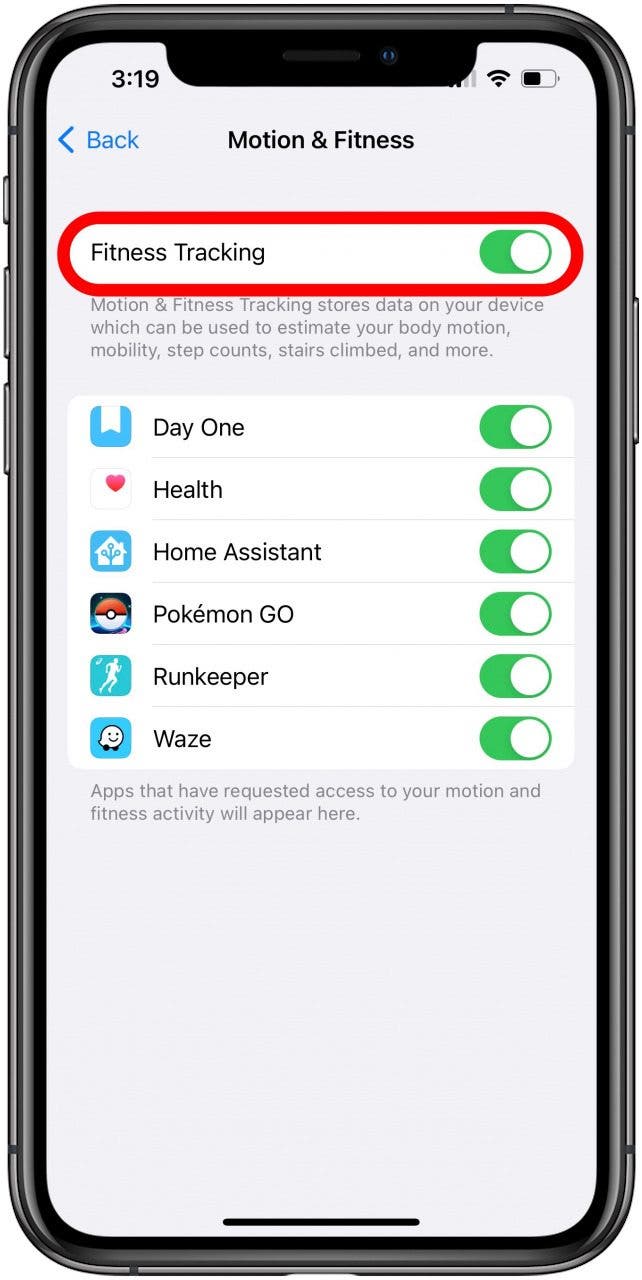
Image Source: www.iphonelife.com
Deciphering Why Your Step Count is Inaccurate
It can be frustrating when your fitness app isn’t tracking your steps. You’re trying to be healthy, and your digital companion isn’t cooperating. This isn’t just a minor inconvenience; it can throw off your entire fitness motivation. Let’s dive into the common reasons behind step count inaccurate issues and provide solutions.
How Step Tracking Works: The Basics
Most smartphones and dedicated fitness trackers use built-in sensors to count your steps. These are typically:
- Accelerometer: This is the main player. It detects the rhythmic motion of your body as you walk or run. Your phone or tracker senses the up-and-down, forward-and-backward movements.
- Gyroscope (less common for basic step tracking): This sensor measures rotational movement. While less crucial for simple step counting, it can help refine accuracy by distinguishing between different types of movement.
- GPS (for distance and route, not direct step counting): While GPS tracking is vital for mapping your runs or walks, it doesn’t directly count steps. It works by triangulating your position using satellite signals.
Your fitness app takes the data from these sensors and uses algorithms to interpret the patterns as steps. For example, a distinct swing of your arm or leg might be registered as a single step.
Common Culprits Behind Fitness Tracker Errors
Several factors can lead to your fitness app failing to track your steps or providing an inaccurate count.
1. App Permissions: The Gatekeepers of Data
One of the most frequent reasons for app not recording steps is a lack of proper permissions. For your fitness app to access your phone’s sensors and background activity, you need to grant it specific permissions.
- Location Services: Even if it seems counterintuitive, some apps require location access to accurately detect movement and distinguish between walking, running, or sitting. This is especially true if the app uses GPS to supplement its step counting or to provide context for your activity.
- Motion and Fitness Activity: This is a critical permission that allows apps to access your phone’s motion sensors. Without it, the accelerometer and gyroscope can’t send data to your app.
- Background App Refresh/Activity: To track your steps continuously, the app needs to run in the background. If your phone’s operating system limits background activity for battery saving, your step count might be interrupted.
2. Sensor Problems: The Hardware Hiccups
Sometimes, the issue lies with the hardware itself.
- Motion Sensor Problems: The accelerometer in your phone or fitness tracker might be malfunctioning. This is less common, especially with newer devices, but it’s a possibility. If your device is old or has been dropped, the sensors might be damaged.
- Calibration Issues: Some apps and trackers rely on calibration to improve accuracy. If your device isn’t properly calibrated (e.g., you haven’t told it your stride length accurately), the step count might be off.
3. Battery Optimization: The Silent Step Stopper
Modern smartphones are designed to conserve battery life, and this can sometimes interfere with background tracking.
- Aggressive Battery Saving Modes: When your phone enters a low power mode, it often restricts background app activity. This can prevent your fitness app from collecting data when it’s not actively open.
- App Standby/Background Restrictions: Operating systems like Android and iOS have features that put apps into a deep sleep if they haven’t been used for a while. This can stop them from tracking steps in the background.
4. Syncing Errors: The Communication Breakdown
Your fitness app relies on data syncing between your device (phone or wearable) and the app’s servers.
- Bluetooth Connectivity Issues: If you’re using a wearable fitness tracker (like a Fitbit), a poor Bluetooth connection can prevent data from being transferred to your phone app. This is a common reason for why my Fitbit isn’t counting steps accurately.
- Wi-Fi/Data Connection Problems: For the app to update and store your progress, it needs a stable internet connection. If your Wi-Fi is down or you have poor mobile data reception, syncing might fail.
- App/Firmware Updates Needed: Outdated app versions or firmware on your wearable can cause compatibility issues and syncing errors.
5. GPS Tracking Issues: The Location Lapses
While GPS doesn’t directly count steps, it can indirectly affect how some apps record your activity, especially if they combine GPS data with sensor data.
- Poor Satellite Signal: If you’re indoors, in dense urban areas with tall buildings, or in heavily wooded areas, your GPS signal can be weak or blocked. This can lead to inaccurate distance tracking, which might influence how some apps estimate steps or activity duration.
- Incorrect GPS Settings: Ensure your app’s GPS settings are configured correctly. Sometimes, an app might be set to only track when the app is open, or it might have battery-saving GPS modes enabled.
6. Incorrect Wearer Settings: The Personalization Problem
How you wear your fitness tracker can also impact accuracy.
- Wearing on the Wrong Wrist: Some algorithms are designed to work best when the tracker is worn on a dominant wrist, as the movement patterns might be more pronounced.
- Loose Fit: If your tracker is too loose, it might not get a consistent reading of your wrist’s movement.
- Incorrect Personal Details: If your height, weight, or stride length are not entered correctly in the app, the step count might be estimated inaccurately.
Troubleshooting Steps: Bringing Your Step Count Back to Life
Now that we know the common causes, let’s walk through the solutions.
Step 1: Checking Essential App Permissions
This is the first and most crucial step.
How to check app permissions:
- On iOS:
- Go to Settings.
- Scroll down and tap on your fitness app.
- Look for sections like “Motion & Fitness,” “Location,” and “Background App Refresh.”
- Ensure all relevant toggles are switched ON. For location, select “While Using the App” or “Always” if necessary for continuous tracking.
- On Android:
- Go to Settings.
- Tap on Apps (or “Apps & notifications”).
- Find and tap on your fitness app.
- Tap on Permissions.
- Ensure “Physical activity” or “Motion sensors” and “Location” are Allowed.
- Also, check “Background restriction” or “Battery optimization” settings for the app and ensure it’s not being aggressively restricted. You might need to go into Settings > Battery > Battery Optimization and set your fitness app to “Not optimized.”
Important: For Android, accessing “Motion and Fitness” permissions can sometimes be found under “Special app access” or “All files and media” depending on your Android version.
Step 2: Force Closing and Restarting the App
A simple restart can often resolve temporary glitches.
- Force Close the App:
- iOS: Swipe up from the bottom of the screen and pause in the middle to see your open apps. Swipe up on your fitness app’s preview to close it.
- Android: Go to Settings > Apps, find your fitness app, and tap Force Stop.
- Restart Your Phone: Turn your phone off completely and then turn it back on. This clears temporary memory and can resolve many software issues.
Step 3: Restarting Your Fitness Tracker (If Applicable)
If you’re using a wearable, restarting it can also help. The method varies by device, but generally involves holding down a button or navigating through the tracker’s settings menu. Consult your device’s manual for specific instructions.
Step 4: Checking Wearable Connectivity and Syncing
For users with fitness trackers, ensure the connection is solid.
- Turn Bluetooth On/Off: On your phone, turn Bluetooth off for about 10-15 seconds, then turn it back on.
- Re-pair Your Device: In your phone’s Bluetooth settings, “forget” your fitness tracker and then re-pair it as if it were a new device.
- Manually Sync: Most fitness apps have a manual sync option. Open the app and look for a sync button or icon (often a circular arrow).
Step 5: Updating Your Fitness App and Device Firmware
Keeping software up-to-date is crucial for compatibility and bug fixes.
- App Updates: Go to your device’s app store (App Store for iOS, Google Play Store for Android) and check for updates for your fitness app.
- Firmware Updates: If you’re using a wearable, check the companion app for your tracker. It will usually notify you if a firmware update is available for the device itself. Install these updates promptly.
Step 6: Reviewing Battery Optimization Settings
Ensure your phone isn’t hindering your app.
- Android:
- Go to Settings > Battery > Battery Optimization.
- Find your fitness app and select “Not optimized” or “Unrestricted”. The exact wording can differ by phone manufacturer.
- iOS:
- Go to Settings > General > Background App Refresh.
- Find your fitness app and ensure Background App Refresh is turned on for Wi-Fi and/or Cellular Data.
Step 7: Checking Wearer Placement and Fit
Proper wear is key to accurate readings.
- Wear It Snugly: Your fitness tracker should be snug enough that it stays in place during movement but not so tight that it’s uncomfortable. You should be able to slide a finger between the band and your wrist.
- Placement: While most trackers are designed for the wrist, some may suggest specific placement for optimal accuracy. Check your device’s manual.
- Consider Both Wrists: If you’re right-handed and have a tracker that allows for wrist preference, try switching wrists to see if it improves accuracy.
Step 8: Calibrating Your Device (If Possible)
If your app or tracker allows for stride length calibration, use it.
- Walk a Known Distance: Many apps suggest walking a set distance (e.g., 100 meters) at your normal pace while carrying your phone or wearing your tracker. The app will then use this information to calculate your average stride length and improve accuracy.
Step 9: Verifying GPS Tracking Settings (If Applicable)
For apps that use GPS to complement step tracking:
- Ensure GPS is On: Make sure your phone’s GPS is enabled.
- App GPS Settings: Check within the fitness app settings to see if there are options related to GPS accuracy or when it should be used (e.g., “Always,” “While Using App”).
Step 10: Clearing App Cache and Data (Android)
This can resolve corrupted app files.
- Go to Settings > Apps.
- Find your fitness app.
- Tap on Storage (or “Storage & cache”).
- Tap Clear Cache.
- If that doesn’t help, you can try Clear Data or Clear Storage. Warning: Clearing data will log you out of the app and delete any local app settings, but your data stored on the cloud should remain.
Step 11: Reinstalling the Fitness App
As a last resort for app-specific issues, uninstalling and reinstalling can provide a clean slate.
- Uninstall the fitness app from your phone.
- Restart your phone.
- Reinstall the app from your device’s app store.
- Go through the setup process again, ensuring you grant all necessary permissions.
Advanced Troubleshooting: When the Basics Don’t Suffice
If you’ve gone through the above steps and are still experiencing issues, consider these more advanced checks.
Investigating Motion Sensor Problems
While you can’t directly “fix” a faulty motion sensor without hardware repair, you can test its general functionality.
- Test Other Apps: Do other apps that use motion sensors (like compass apps, AR apps, or games that use tilt controls) work correctly? If not, the issue might be with your phone’s sensors themselves.
- Sensor Test Apps: On Android, you can often find diagnostic apps in the Google Play Store that can read data from your phone’s sensors. This can help determine if the accelerometer is reporting data.
Addressing Wearable-Specific Issues (Why My Fitbit Isn’t Counting Steps)
If you’re specifically wondering why my Fitbit isn’t counting steps, here are some Fitbit-specific points:
- Fitbit App Battery Settings: Ensure the Fitbit app on your phone has unrestricted battery usage so it can run in the background.
- Fitbit Device Settings: Some Fitbit models have settings for stride length or activity tracking that can be adjusted.
- Fitbit Dashboard vs. App: Sometimes, there can be a slight delay in data appearing on the Fitbit dashboard compared to the mobile app.
Software Glitches vs. Hardware Failures
It’s important to differentiate between temporary software glitches and persistent hardware problems. If your step count suddenly stops working after an OS update or app update, it’s likely a software issue. If the problem persists across multiple apps and after extensive troubleshooting, a hardware issue with your phone or wearable is more probable.
Contacting Support
If all else fails, it’s time to reach out to the experts.
- Fitness App Support: Most apps have a support section or contact form within the app or on their website.
- Device Manufacturer Support: If you suspect a hardware issue with your phone or wearable, contact the manufacturer’s customer support for further assistance or repair options.
Frequently Asked Questions (FAQ)
Here are answers to some common questions about fitness app step tracking.
Q1: Can my fitness app track steps if my phone is in my pocket?
A1: Yes, most modern fitness apps use the accelerometer, which can detect the rhythmic motion of walking even if the phone is in your pocket. However, the accuracy might be slightly reduced compared to holding it or wearing it on your arm, as some movements might not translate as clearly.
Q2: Why does my step count vary between different apps?
A2: Different fitness apps use different algorithms to interpret sensor data. Some might be more sensitive to small movements, while others might filter out certain motions. The way they handle calibration, background activity, and even how they define a “step” can lead to variations in step counts.
Q3: Does turning off my phone at night affect my step count?
A3: Yes, if you turn your phone off, it cannot track your steps during that period. It’s best to keep your phone on and ensure your fitness app has background activity permissions enabled.
Q4: Can a case for my phone affect step tracking?
A4: Generally, a standard phone case should not significantly affect step tracking. However, very bulky or metal cases could potentially interfere with the internal sensors if they put pressure on the device or block its movement in an unusual way. This is rare.
Q5: My app tracks steps but the distance is wrong. What’s happening?
A5: This is often due to inaccurate stride length calibration or reliance on GPS. If your stride length is not set correctly in the app, it will estimate distance based on an incorrect step length. If GPS is also off or has a weak signal, distance tracking will be inaccurate. Ensure both your personal details and GPS settings are optimized.
Q6: Is it better to use my phone or a wearable for step tracking?
A6: For general step tracking, both can work well. Wearables like Fitbits or Apple Watches are often designed to be worn continuously and may offer more consistent tracking, especially during activities where your phone might not be with you. However, if you always have your phone, it can be a convenient all-in-one solution. The best choice depends on your lifestyle and preferences.
By systematically working through these troubleshooting steps, you should be able to identify and resolve most issues preventing your fitness app from accurately tracking your steps. Happy tracking!